

Part 1: Email responses and checks
A VA costs $3,000 a month. This workflow costs $12.
After 15 years building marketing automation for Adobe, Workday, Dropbox, and NTT Data, this is the first automation I’d tell you to build if you’re drowning in email. It’s the one I’d build before any “AI agent” course tries to sell you a fancier version of the same idea.
Here’s the full build (download)— n8n, Claude API, your Gmail. End to end.
Quick answer
This workflow polls your Gmail every 5 minutes, classifies every incoming email with Claude (REPLY_NEEDED, LEAD, URGENT, FYI, NEWSLETTER, or SPAM), and creates a Gmail Draft in your voice for anything worth replying to. It runs on n8n (free, self-hosted) plus the Claude API (~$10-15/month in token costs for a normal email volume). It only creates drafts. It never sends anything automatically.
If you read 12 of the 200 emails that hit your inbox, this is the workflow that handles the other 188 — before you see them.
Why email is the most expensive thing on your calendar
Most marketers I work with don’t think of email as a cost. They think of it as a chore.
Run the math: if you spend 90 minutes a day on email at a $150/hr loaded cost, that’s $4,500 a month going to inbox triage. A VA cuts it to $3,000. This workflow takes it to $12.
That’s not the real win, though.
The real win is that the cognitive cost of an inbox at 47 unread is roughly 8x the cost of an inbox at 0. You’re not just buying back the 90 minutes — you’re buying back the headspace you currently spend dreading the 90 minutes.
That’s the unlock most “AI agent” content misses. They focus on the time. The time is the smallest line item.
What you’ll build
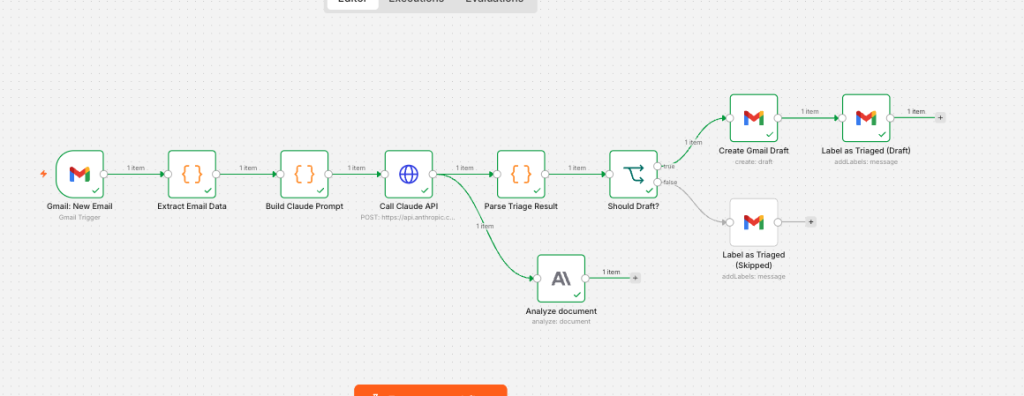
The workflow has 9 nodes:
- Gmail Trigger — polls every 5 minutes for unread emails not yet labeled
ai-triaged - Extract Email Data — pulls subject, body, sender into a clean format
- Build Claude Prompt — constructs the system + user prompt with the triage rules embedded
- Call Claude API — sends the email to Claude for classification + drafting
- Parse Triage Result — parses Claude’s JSON response into structured fields
- Should Draft? — IF node that routes based on classification
- Create Gmail Draft — for REPLY_NEEDED, LEAD, or URGENT classifications
- Label as Triaged (Draft) — applies the
ai-triagedlabel after drafting - Label as Triaged (Skipped) — applies the same label for FYI/NEWSLETTER/SPAM (so nothing gets reprocessed)
The shape matters. Everything has to flow back to the label, or you’ll re-triage the same email every 5 minutes forever.
What you need before you start
- n8n — either self-hosted on a $5/month VPS or n8n Cloud (~$20/month). Free for self-hosted.
- Claude API key — from console.anthropic.com. Free tier covers testing; expect $10-15/month at normal email volume.
- Gmail account — needs OAuth with compose + label modify scopes.
- 20 minutes for setup, plus a few days of light tuning.
That’s the whole stack.
Step 1: Create the Gmail label first
Before you import anything, make the label.
Open Gmail → left sidebar → More → Create new label → name it ai-triaged (lowercase, hyphen, no space). Click Create.

This label is the workflow’s memory. Every email it processes gets tagged with it. The trigger filter is is:unread in:inbox -label:ai-triaged — meaning “give me new unread emails that haven’t been touched yet.”
Skip this step and your workflow will hammer the same email every 5 minutes until your Anthropic bill makes you cry.
Step 2: Import the workflow into n8n
Download the workflow JSON (link at the bottom of this post).
In n8n: Workflows → + Add workflow → top-right ⋯ menu → Import from file → select the JSON.
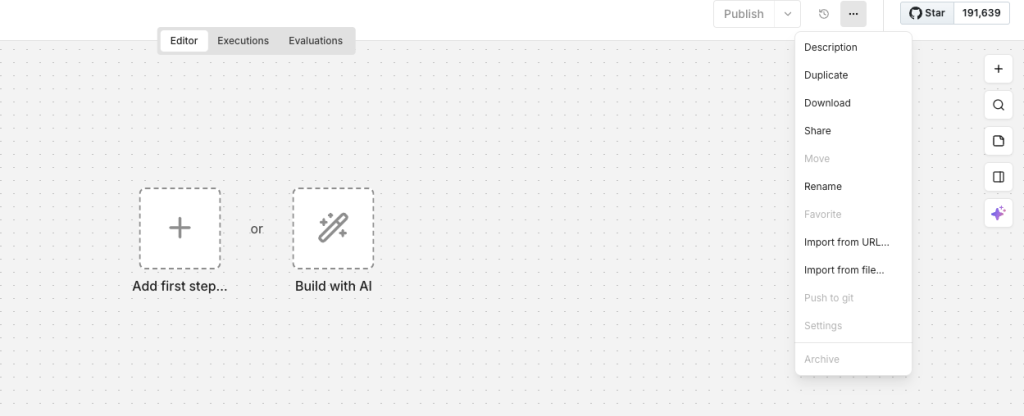
All 9 nodes load into the canvas. Two of them will show red warning badges — that’s expected. The credentials aren’t connected yet.
Step 3: Connect Gmail with the right scopes
This is where most people get stuck.
If you already had a Gmail credential in n8n for read-only stuff, it probably doesn’t have write access. You need a new one.
Click the Gmail: New Email node → under Credential, click + Create New Credential → choose Gmail OAuth2 API → click Sign in with Google.
When Google asks which permissions to grant, you must check ALL of these:
- Read, compose, send, and permanently delete all your email from Gmail
- Manage drafts and send emails
- Manage your labels

Save the credential, then go to each of the three other Gmail nodes (Create Gmail Draft, Label as Triaged (Draft), Label as Triaged (Skipped)) and pick the same credential from the dropdown.
If you skip a permission, draft creation will fail with a 403 and you’ll spend 20 minutes wondering why. Ask me how I know.
Step 4: Connect the Claude API
Click the Call Claude API node. Authentication is already set to “Generic Credential Type → Header Auth.”
Click the credential dropdown → + Create New Credential → fill in:
- Name:
x-api-key - Value: your Anthropic API key (starts with
sk-ant-)

Save it. That’s the entire authentication step. No OAuth dance.
Step 5: Test before activating
This is the part most tutorials skip. Don’t.
Send yourself a test email from another account with a real ask. Something like:
Subject: Quick question about your community
Hey Nate — saw your post on LinkedIn. Curious if you do 1:1 consulting on Marketo migrations? Have a small project I’d like to discuss.
Then in n8n: click the Gmail: New Email node → Fetch Test Event → n8n grabs your latest unread message. Click Execute Workflow.
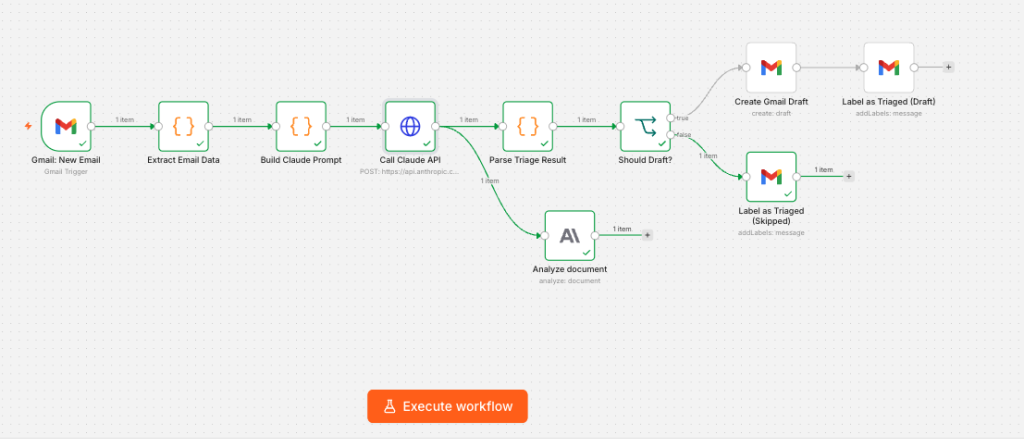
Watch each node light up green. Inside of 30 seconds:
- Gmail trigger should fire
- Extract should pull subject/body/sender
- Build prompt should construct the request
- Call Claude API should return a JSON response
- Parse should extract
classification: "LEAD"and adraftfield - Should Draft? should route to TRUE
- Create Gmail Draft should create the draft
- Label nodes should apply
ai-triaged
Open your Gmail Drafts folder. The draft is there.
[SCREENSHOT: Gmail Drafts folder showing the AI-generated reply addressed to the test sender]
Open the original test email. The ai-triaged label is on it.
If both are true, you’re done. Toggle the workflow Active.
How Claude decides what to draft
The classification logic lives in the Build Claude Prompt node — a long system prompt that defines six classification categories and the rules for each.
The categories:
| Classification | Action | What triggers it |
|---|---|---|
| REPLY_NEEDED | Draft created | Personal email, direct question from a known contact |
| LEAD | Draft created | Sales inquiry, consulting prospect, partnership, speaking invite |
| URGENT | Draft created (high priority flag) | Same as above but time-sensitive (deadlines within 48 hrs) |
| FYI | Labeled only | Newsletters you actually read, status updates, CCs |
| NEWSLETTER | Labeled only | Routine marketing emails, promotions |
| SPAM | Labeled only | Cold outreach, low-effort pitches, generic automation |
Three of the six get drafts. The other three get the label and stay in your inbox quietly.
The prompt also defines voice. It tells Claude exactly how I write emails:
- One short paragraph for most replies. Two max.
- Sign off “— Nate”
- Never “I hope this email finds you well”
- Never “leverage” or “unlock” or “circle back”
- Lowercase casual for people I know, normal caps for new contacts
- Generous with time for real value, ruthless with cold pitches
The full voice section is in the prompt. Edit it to match your own voice — that’s the whole point.
What real Day 1 looks like
Be honest with yourself: Claude doesn’t nail your voice on Day 1.
Classification accuracy will be around 90%. Voice fidelity will be around 70%. Some drafts will sound like you. Some will sound like a moderately polite AI trying to sound like you.
This is fine. It gets better fast.
Here’s the tuning loop I use:
Day 1-2: Don’t tune anything. Let the workflow run. Read every draft. Note the patterns where it gets your voice wrong.
Day 3: Pull 3-5 drafts that missed the mark. Look at what specifically felt off. Usually it’s one of these: too formal, too long, missing a contraction, using a phrase you’d never say.
Day 4: Open the Build Claude Prompt node. Find the “EMAIL VOICE” section. Add specific examples:
“Phrases I DO use: ‘Got it.’ / ‘Let’s set time.’ / ‘No worries if not.’ Phrases I NEVER use: ‘Hope you’re well.’ / ‘Just circling back.’ / ‘Per my last email.’”
Save. Run again.
Day 5-7: Voice fidelity jumps to 90%+.
The whole tuning process takes about 10 minutes of editing the prompt with real examples. After that, you stop touching it.
The math: why this is the first automation to build
Most “AI for business” content has you build cool agents that handle edge cases. This handles the most common case — your inbox.
Run the cost comparison:
| Approach | Monthly cost | Setup time | Time saved per week |
|---|---|---|---|
| Hire a VA | $3,000 | 2-3 weeks recruiting | 8-10 hours |
| Inbox Zero willpower | $0 | Forever | 0 (you’ll fail by Wednesday) |
| This workflow | ~$12 in API costs | 30 minutes | 6-8 hours |
A VA still wins on judgment for the genuinely tricky stuff. This workflow wins everywhere else.
After three years running variations of this for my own consulting work and for clients, the time savings compound in a way that’s hard to feel in week one and impossible to ignore by week eight.
The safety guardrails (built in, not bolted on)
The workflow uses resource: draft, operation: create. There is no send node anywhere. There cannot be. I designed it this way on purpose.
The worst-case scenario, if Claude completely misclassifies an email, is that a draft sits in your Drafts folder waiting for you to delete it. Nothing goes out. Ever. You retain full control.
Other safety features baked in:
- Label-based deduplication — same email never gets triaged twice
- Polling, not webhooks — no inbound endpoints exposed
- 6,000 character truncation on email bodies — protects API spend on long threads
- Defensive JSON parsing — workflow doesn’t crash when Claude occasionally adds markdown fences
Read every draft before sending. The workflow saves you 80% of the typing — it does not replace your judgment.
Common pitfalls (and the fix for each)
❌ Same email keeps getting reprocessed The ai-triaged label isn’t being applied. Open the Label nodes and confirm the credential is connected and the label name is exactly ai-triaged.
❌ “Insufficient Permission” error from Gmail Your OAuth credential is missing scopes. Delete it, recreate it, check the boxes for compose AND manage labels.
❌ Drafts created but don’t thread The threadId parameter isn’t being passed. Open Create Gmail Draft → Additional Options → Thread ID should be {{ $json.threadId }}.
❌ Claude classifies everything as SPAM Your prompt is too strict. Tighten the SPAM section in the Build Claude Prompt node.
❌ JSON parse errors Switch the model in Call Claude API from claude-opus-4-5 to claude-sonnet-4-5. Sonnet adheres more reliably to JSON output requirements.
What to build next (after this one is running)
Once the email triage is humming, you’ll see other automations everywhere. Here’s the progression I’d build in order:
- Auto-archive newsletters — extend this workflow to remove the INBOX label when classification is NEWSLETTER or SPAM. Inbox stays clean automatically.
- Slack alerts for URGENT — add a Slack node after Create Draft, conditional on
priority === 'high'. Get pinged for time-sensitive stuff only. - Log to a Google Sheet — append every classification + confidence to a Sheet. After a week you’ll have a tuning dashboard.
- Add thread context — fetch the prior 2-3 messages in a thread before drafting. Drafts get dramatically more accurate for ongoing conversations.
All four are 30-60 minute extensions of this same workflow.
Frequently asked questions
What is n8n and why use it instead of Zapier or Make?
n8n is a self-hostable workflow automation tool — think Zapier but open source. The big advantage for this kind of build is that you can run it on your own server for $5-20/month flat, regardless of how many emails you process. Zapier charges per task, which gets expensive fast at email volume. n8n also gives you more control over data — your emails never pass through a third-party SaaS layer.
Will this workflow auto-send my emails?
No. The workflow only creates Gmail Drafts. There is no send node anywhere in the build. Every draft waits in your Drafts folder for you to review and send manually. This is a deliberate design choice — I never want AI sending emails on my behalf without human review.
How much does it actually cost to run?
Self-hosted n8n on a small VPS: $5-12/month. Anthropic API costs for Claude: roughly $10-15/month for someone processing 100-200 emails/day on claude-sonnet-4-5. Total under $30/month. A VA doing the same work is $2,000-4,000/month.
Why Claude instead of GPT or Gemini?
Honestly, all three will work. I chose Claude for two reasons: it’s better at adhering to strict JSON output formats (fewer parse errors), and it’s noticeably better at matching a specific writing voice when given examples. GPT tends to drift toward a generic professional tone. Test both with your own emails if you want — the workflow is model-agnostic if you swap the API endpoint.
Can I use this with Outlook instead of Gmail?
Yes, with a node swap. Replace the Gmail Trigger with a Microsoft Outlook Trigger, and the three Gmail nodes with their Outlook equivalents. The Claude logic in the middle stays identical. The OAuth setup is slightly more involved on the Microsoft side.
How do I tune Claude to match my email voice?
Edit the Build Claude Prompt node in n8n. The system prompt has a section called “EMAIL VOICE” with my voice rules. Replace those with your own. Best results come from including 3-5 specific phrases you DO use and 3-5 you NEVER use. Voice fidelity jumps from ~70% to ~95% after one round of tuning.
What if Claude misclassifies an important email as SPAM?
The email still sits in your inbox — it just doesn’t get a draft. The classification only affects whether a draft is created. You’ll still see the original email when you scan your inbox. The label tells you it was processed, not that it was hidden.
Get the workflow JSON
The full workflow JSON, the setup guide, and the master prompt that powers Claude’s voice are inside the That Digital Strategist Skool community. Members get:
- The importable n8n workflow file (
TDS_n8n_Gmail_Triage.json) - The full setup guide with troubleshooting for every common issue
- The triage prompt with voice tuning examples
- Three follow-on workflow variants (auto-archive, Slack alerts, Google Sheet logging)
- Live weekly builds where we build and tune workflows like this one together
→ Join the community: skool.com/thatdigitalstrategist
If you want to see this one live before joining, I run free training every Thursday inside the AI Weekly Learning Meetup. Next session covers a different automation, but the past sessions are in the archive for members.
→ Free weekly training: meetup.com/aiweeklylearning
About me
I’m Nathaniel Johnson — founder of That Digital Strategist and the Marketo Community on LinkedIn. 15+ years in marketing automation, working with enterprise teams at Adobe, Workday, NTT Data, Dropbox, and Microsoft. I’ve generated over $1M in revenue using automation and AI, and I teach marketers how to build the same systems for themselves.
If you want more of this kind of build, subscribe on YouTube (@thatdigitalstrategist) and follow me on LinkedIn (@thatdigitalstrategist).
What automation would you build next? Drop it in the comments — I read every one.
— Nate

Leave a Reply